





A Shopify cart drawer lets a shopper inspect and edit their cart in a panel that opens over the current page. The shopper can change quantities, remove products, review the subtotal, and continue to checkout without first loading the full cart page. Themes and apps implement drawers differently, so adding one is only half the job. You also need to test product variants, discounts, accessibility, mobile behavior, and the handoff to checkout.
This guide explains the practical choices: when a drawer fits, how to add one, what belongs inside it, and how to avoid turning the last step before checkout into a crowded sales panel.
Key takeaways
- Use your theme drawer if it already handles variants, discounts, accessibility, and checkout correctly. Add an app only for missing behavior.
- Keep quantities, remove controls, subtotal, and checkout obvious. Recommendations and rewards must remain secondary.
- Test cart requests, variants, discounts, bundles, subscriptions, and sold-out states on a duplicate theme.
- Measure checkout progression and cart errors, not whether the drawer merely looks polished.
Cart drawer vs cart page: choose the right pattern
Shopify supports a dedicated cart template at /cart. Shopify describes that page as an overview of cart contents, typically with one row per line item. A drawer is a theme or app interface layered on top of that cart behavior. It does not remove the need for a valid cart or checkout path.
Cart drawer compared with a full cart page.
Shopping continuity: Keeps the current product or collection page visible; Moves the shopper to a separate page
Space: Best for a focused summary and a few controls; Better for long carts, detailed notices, or complex options
Mobile: Fast when the panel uses the full viewport well; Familiar and easier to scan when content is dense
Implementation: Depends on theme JavaScript, app embed, or custom code; Uses the theme’s cart template
Best fit: Stores that want quick review before checkout; Stores whose carts require substantial explanation or configuration
Use a drawer when most orders have a manageable number of line items and shoppers benefit from staying on the page. Keep the cart page available as a fallback. A full page may be safer when customers must enter extensive order notes, configure subscriptions, review wholesale details, or manage unusually large carts.
How to add a Shopify cart drawer
There are three common routes: enable the drawer already included with your theme, install a cart drawer app, or build a custom drawer. Start with the least invasive route that meets your requirements. Custom code creates maintenance work whenever the theme, cart logic, or installed apps change.
- Check the published theme. Open Online Store > Themes > Customize, then inspect Theme settings and any Cart section for a drawer, notification, or cart type option.
- If the theme cannot do what you need, choose an app that supports your theme, discounts, markets, subscriptions, and existing cart-related apps. Read its permissions and support notes before installing.
- Enable the app block or app embed as instructed. Shopify lets merchants manage app blocks and embeds in the theme editor. Save the change and preview the correct theme and market.
- Test the complete add-to-cart and checkout path on a duplicate theme before changing the live store. Include mobile, desktop, variants, discounts, accelerated payment buttons, and removal of the final item.
What a useful Shopify cart drawer should include
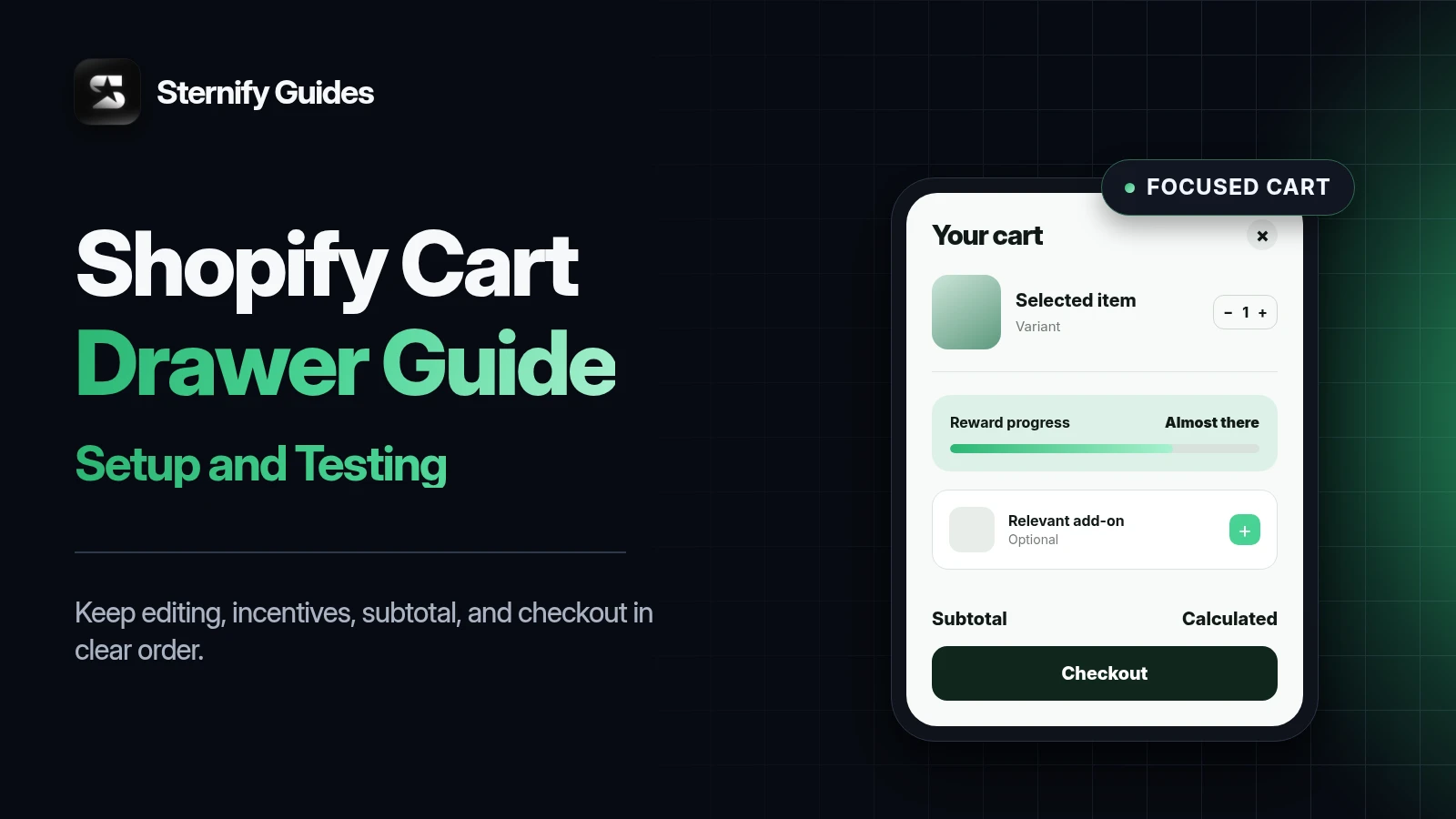
A drawer should answer four questions quickly: What is in my cart? Can I correct it? What will I pay now? How do I continue? Every extra block competes with those answers. Build the core first, then add incentives or recommendations only when they remain clear on a small phone.
Product image, title, selected variant, unit price, quantity controls, and remove action for every line item
Subtotal with a clear note when shipping, taxes, or discounts are calculated later
A prominent checkout button and a visible way to close the drawer or continue shopping
An empty-cart state that gives the shopper a sensible route back to products
Clear feedback when a quantity changes, an item sells out, or a request fails
Quantity controls need more care than their size suggests. Prevent impossible quantities, show loading or disabled states during updates, and keep the displayed subtotal in sync. If an update fails, preserve the shopper’s previous cart rather than displaying a value that Shopify did not accept.
Add incentives without blocking checkout
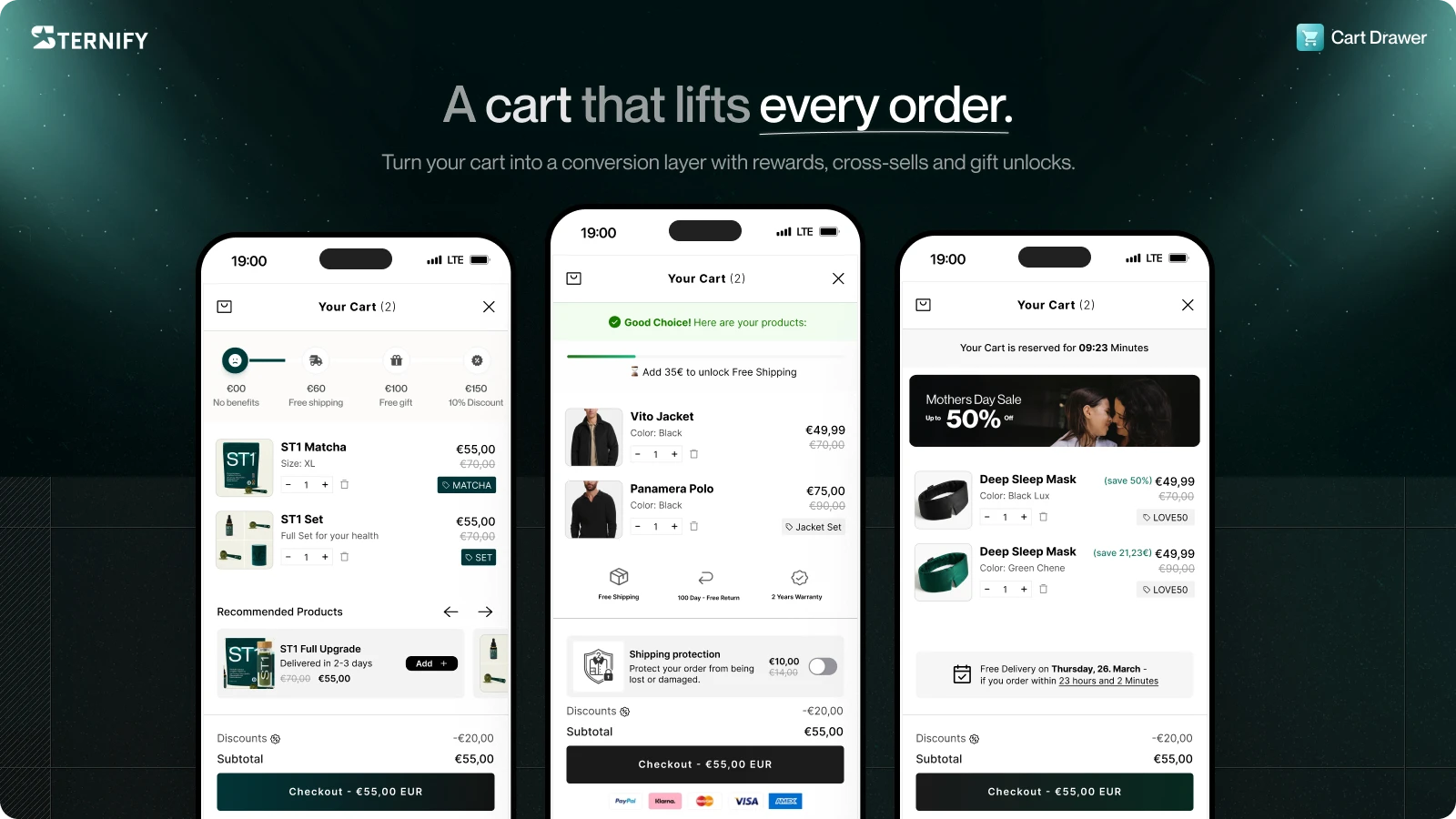
Free-shipping progress, a relevant add-on, or a short benefit row can help a shopper make a decision. They can also bury the checkout button. Treat each element as a hypothesis and keep the message tied to a real offer. A free-shipping bar should use the same threshold and currency logic as the store’s shipping rules. A timer should represent a genuine deadline, not a reset loop designed to manufacture pressure.
Helpful cart elements
- A free-shipping progress bar with an accurate remaining amount
- One or two complementary products that fit the cart
- Short benefits such as returns or delivery details
- Optional protection with a clear price and explanation
- A real campaign banner with a valid end time
Elements that add friction
- Preselected paid additions that a shopper may miss
- Recommendations that push the subtotal below the fold
- A timer that restarts whenever the drawer opens
- Conflicting discount and shipping messages
- Several competing buttons with equal visual weight
If you offer shipping protection or another optional service, label the price, explain what it covers, and make the state easy to change. An unchecked default is usually the clearer choice. Confirm that removing the service also updates the cart and subtotal immediately. Honest UX protects the customer’s ability to make an informed purchase.
Design the drawer for mobile, keyboard, and screen-reader use
A drawer behaves like a dialog. When it opens, keyboard focus should move into it. A keyboard user should be able to reach every control, close it with an obvious button, and return to the element that opened it. The W3C dialog pattern also calls for keeping focus inside a modal dialog while it is open. Do not rely on a faint overlay or a swipe gesture as the only way to close it.
Give icon-only buttons accessible names, including close, increase, decrease, and remove
Keep the checkout button visible without covering cart content or browser controls
Use readable type and clear contrast for prices, notices, disabled states, and progress text
Allow the cart list to scroll while the heading and footer remain understandable
Test zoom, long product titles, translated copy, large prices, and right-to-left layouts when relevant
Test cart logic before publishing
Watch the browser console and Shopify cart responses during each action. Repeat a smoke test after publishing and after theme releases, cart-app updates, shipping-rule changes, or major promotions. Record the expected result for every case so another teammate can repeat the check without relying on memory.
Visual approval is not enough. A drawer can look correct while its cart state is stale or its checkout button passes the wrong data. Test on a duplicate theme with the same apps and settings as production. Use real catalog products, including variants, sold-out items, discounted products, and any subscription or bundle configuration you sell.
Launch checks
- Cart actions: add every product type, change quantities, remove lines, empty the cart, and reopen the drawer from multiple pages.
- Pricing: verify variants, sale prices, automatic discounts, discount codes, shipping thresholds, taxes or duties messaging, and every supported currency.
- Compatibility: test subscriptions, bundles, gifts, upsells, inventory rules, analytics, consent tools, and any app that changes cart lines.
- Experience: test current mobile browsers, desktop keyboard navigation, slow connections, error states, long carts, and the final checkout handoff.
Measure the drawer without assuming it caused a lift
Track whether shoppers can use the drawer before you judge its commercial effect. Useful events include drawer opened, quantity changed, item removed, recommendation added, protection changed, checkout clicked, and cart error. Segment results by device and cart size. A high recommendation click rate does not help if checkout clicks fall or cart errors rise.
If you compare a drawer with a cart page or test a new layout, hold discounts and acquisition mix as steady as practical. Watch checkout starts, completed orders, average order value, support messages, and technical errors together. Sternify and any other cart drawer tool should be evaluated in your store context. No interface can guarantee a conversion increase.
When Sternify Cart Drawer fits
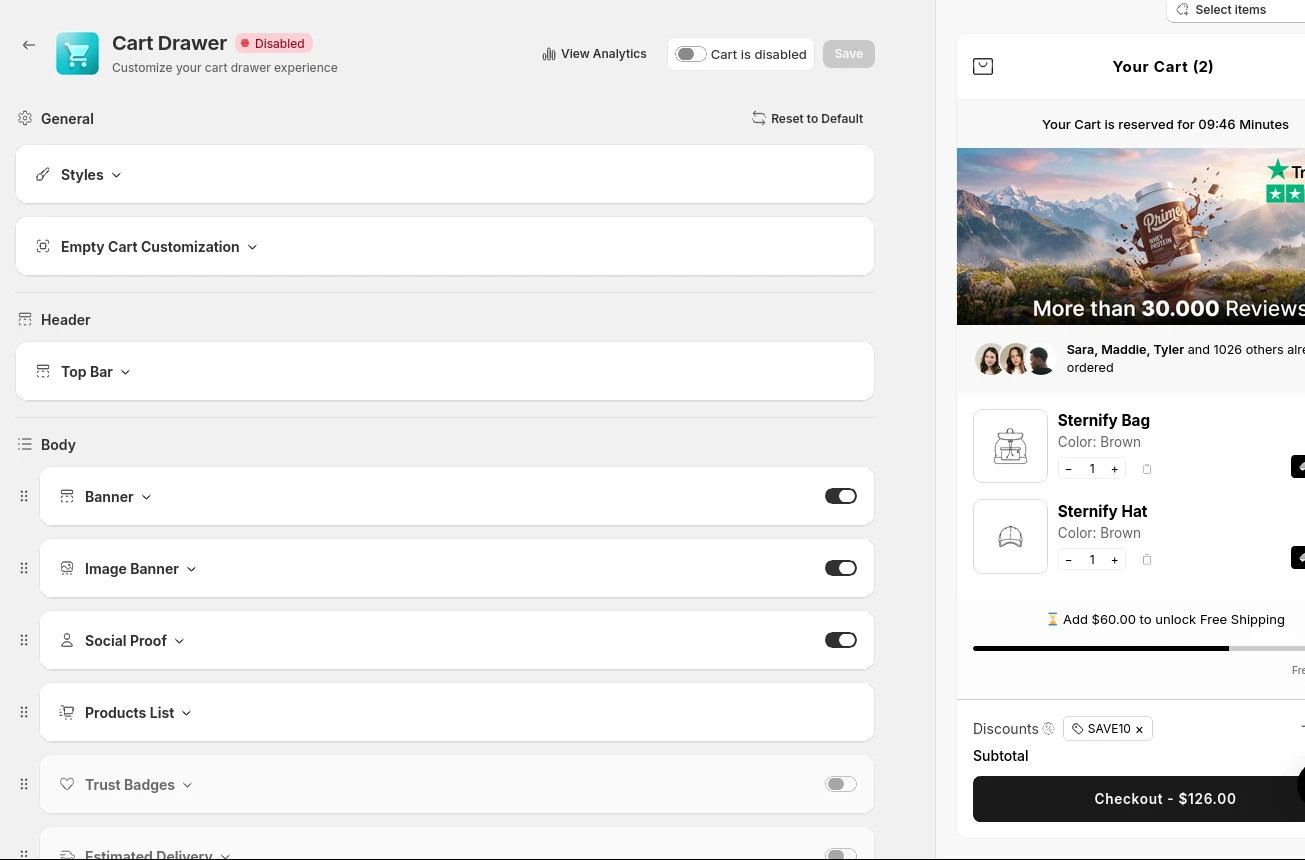
Sternify Cart Drawer replaces the default theme drawer through a Shopify app extension embed. Merchants can configure the product list, a banner or timer, upsells, free-shipping progress, benefits, footer controls, and an optional protection toggle. The useful sequence is the same one covered in this guide: make the cart understandable, keep checkout clear, then add only the incentives that fit the offer.
Shopify cart drawer FAQs
What is a cart drawer on Shopify?
It is a side panel or overlay that displays the current Shopify cart without loading the full /cart page. Shoppers can usually review products, change quantities, remove items, and start checkout from the panel.
Does every Shopify theme include a cart drawer?
No. Some themes offer a drawer or cart notification in theme settings, while others use only the cart page. Check the theme editor and the theme's documentation before adding an app or custom code.
Can I add a cart drawer without editing theme code?
Often, yes. You can enable a built-in theme option or install an app that uses an app block or app embed. Compatibility still needs testing, especially when other apps modify cart lines or checkout-related offers.
Should a cart drawer replace the cart page?
It can become the primary cart interface, but keeping a working cart page gives shoppers and support teams a useful fallback. Stores with dense cart configuration may prefer the full page as the main experience.
What should I test after changing my Shopify cart drawer?
Test add, update, remove, empty-cart, discount, currency, inventory, subscription, bundle, upsell, mobile, keyboard, error, and checkout states. Repeat the embed check whenever you publish a different theme.
Sources and further reading
Shopify Help Center: Extend your theme with apps