





To add product reviews on Shopify, install a review app, place its star-rating and review-list widgets in your product template, import any reviews you already own, configure review request emails, and test submission and moderation before publishing. Shopify’s former Product Reviews app is no longer the route. Shopify discontinued it in 2024, so storefront reviews now require a third-party review app or another custom implementation.
Shop also has product reviews, but Shop reviews and storefront review widgets are different systems. A verified buyer can leave a review in the Shop app after an eligible purchase. Shopify says those reviews and average ratings appear on the product details page in Shop. They do not automatically create a complete review section on your online store. This guide covers the storefront setup and explains where Shop fits.
Key takeaways
- Shopify discontinued its former Product Reviews app. Storefront reviews now require a third-party app or custom implementation.
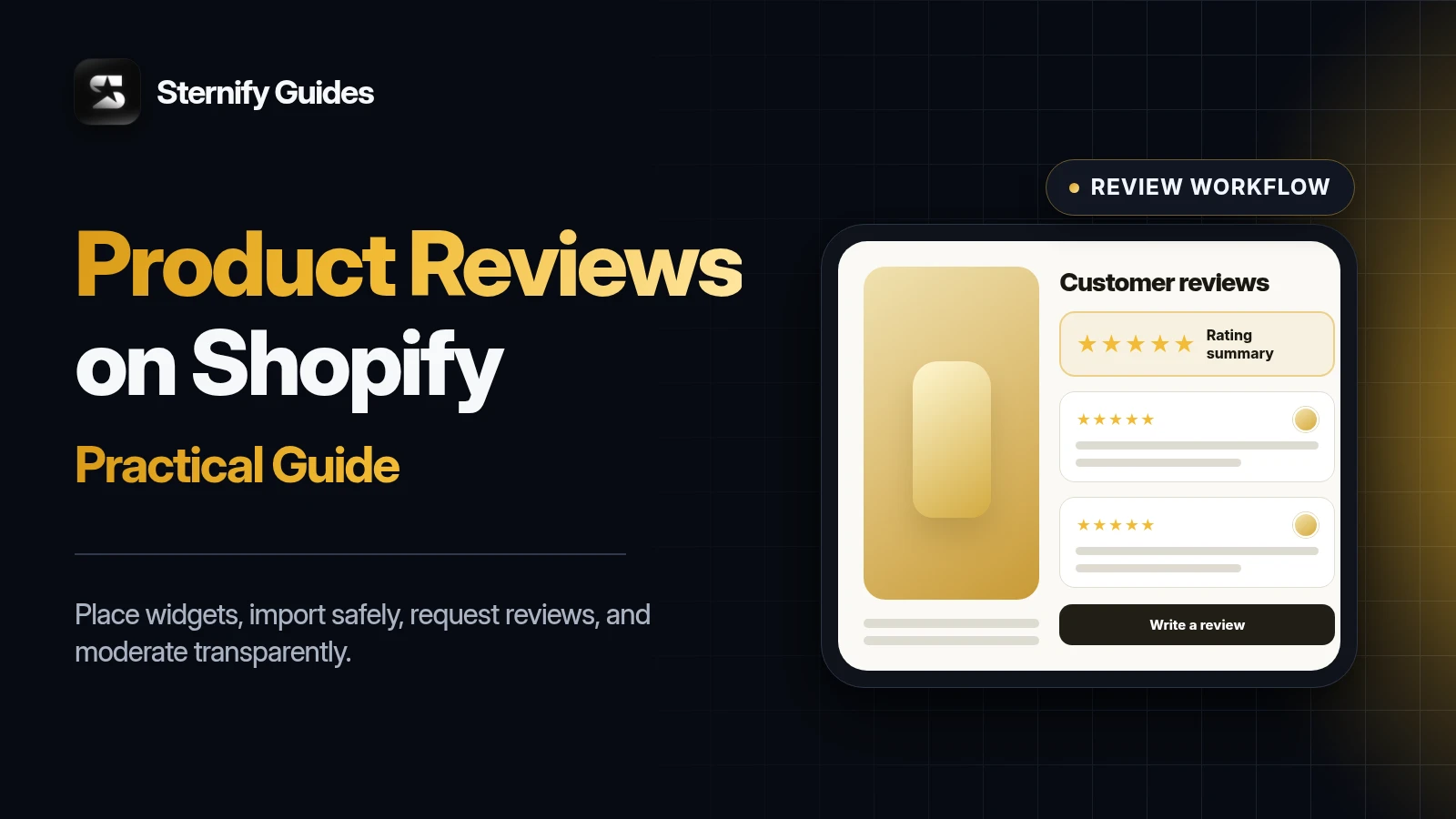
- Put a rating summary near the product title and the complete review list lower on the product page.
- Import only reviews you own, preserve product mapping and dates, and keep a source export before migration.
- Publish eligible critical reviews, disclose incentives, and test requests, forms, moderation, and mobile display.
Shop reviews vs storefront product reviews
Two review surfaces on Shopify.
Where shoppers see them: Product details in the Shop app; Your online store’s product pages and any other widgets you place
Who requests the review: Shop sends eligible customers a notification after delivery; The app can send invitation emails and reminders based on your settings
Who can submit: Shopify says only Shop customers who purchased the product can review it; Rules depend on the app and your submission settings
Display control: Managed through the Shop channel and its review tools; Managed through app widgets, theme placement, and app moderation
Connection between them: Supported partner apps can sync eligible reviews with Shop; Only supported integrations sync with Shop; check the current Shopify list
You can use both. Treat Shop as a sales-channel review surface and your review app as the system that powers your storefront collection, widgets, imports, and request flow. If syncing with Shop matters, check Shopify’s current supported partner list before choosing an app. Do not assume every storefront app can send reviews to Shop.
How to add product reviews on Shopify in four steps
- Choose and install a review app. Confirm widget types, import formats, email controls, moderation, media support, theme compatibility, pricing, data export, and support for your markets.
- Add the star-rating and review-list widgets in Online Store > Themes > Customize. Use app blocks or an app section where the product template supports them, then save and preview.
- Import existing reviews and map them to the correct Shopify products. Validate ratings, dates, customer names, media, and product handles before publishing the full batch.
- Configure invitations, reminders, moderation, and notifications. Submit a test review, verify the email path, inspect mobile and desktop widgets, and only then enable the live request flow.
1. Choose a review app around the full workflow
A star widget is the visible part, not the whole system. The app also stores reviews, maps them to products, sends requests, handles moderation, serves images or video, and controls exports. Switching later is possible, but field mismatches and media transfers create work. Choose around the operating workflow you need for the next year, not the prettiest demo widget.
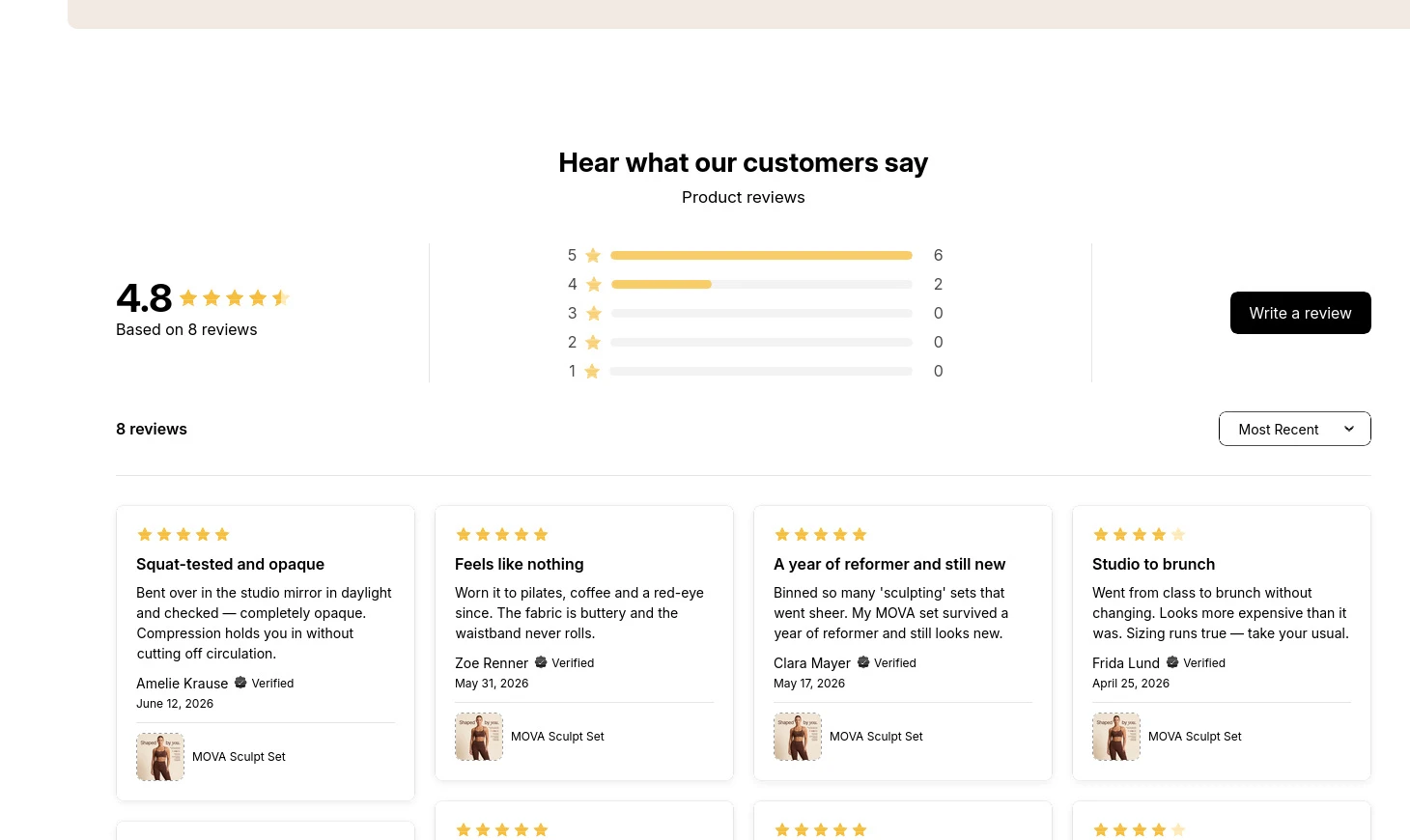
Display: compact star rating, full review list, optional media gallery, filters, and a clear write-a-review action
Collection: post-purchase invitations, reminder timing, reply notifications, and a manual or Flow-based trigger when needed
Migration: direct imports from your current provider plus a documented CSV format and export path
Moderation: publish, hide, unpublish, delete, media visibility, and rules based on rating or review status
Operations: performance, theme compatibility, localization, accessibility, support, retention of data after uninstall, and total price
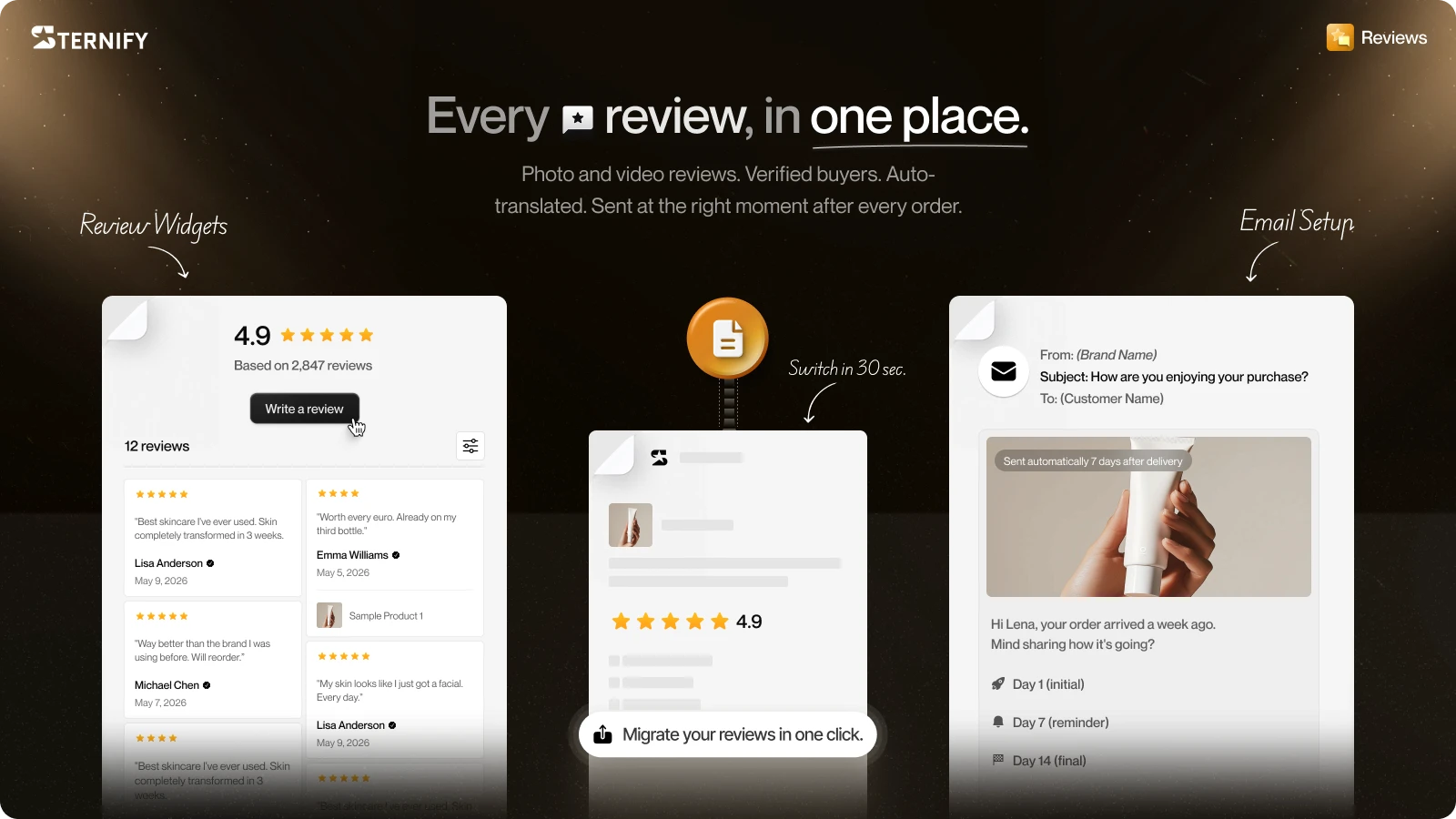
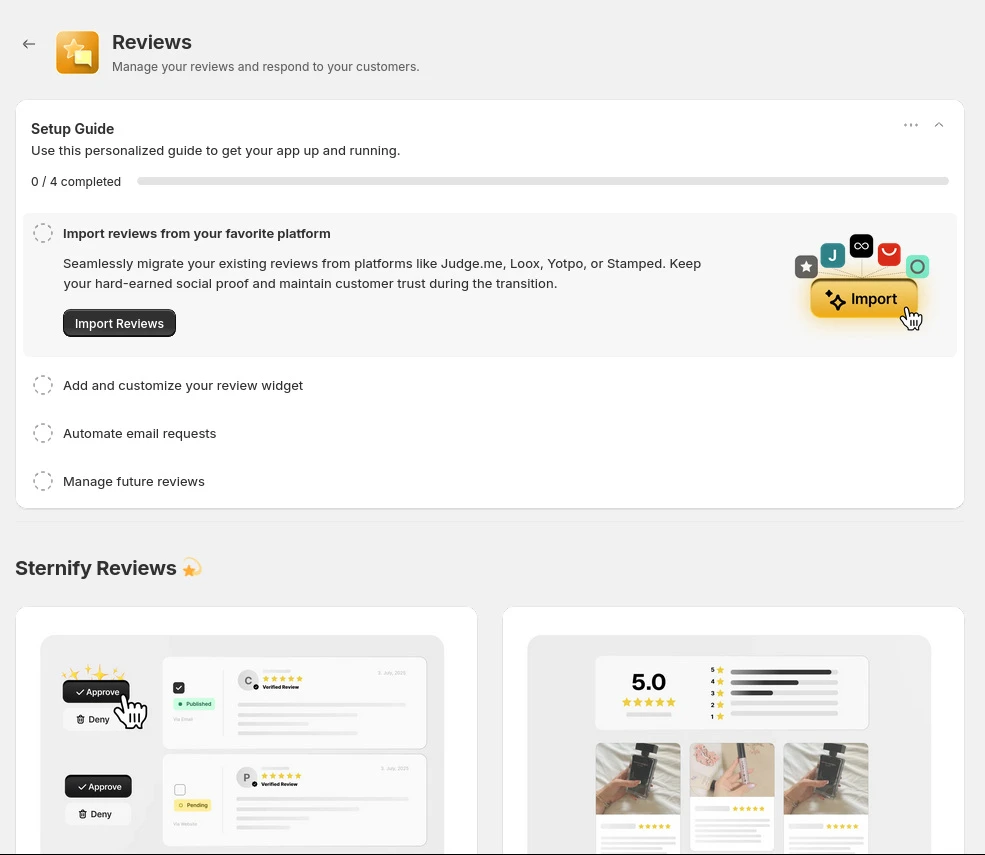
Sternify Reviews covers display widgets, imports from Judge.me, Loox, and CSV, invitation emails and reminders, auto-publish rules, a Shopify Flow trigger, and photo or video reviews. Judge each capability against your actual catalog and order volume. For example, a store moving from another app needs migration reliability before advanced gallery styling.
2. Place review widgets in the product template
Shopify lets apps integrate through app blocks, app embeds, or code added to the theme. Review apps usually use app blocks or app sections for visible widgets. In the theme editor, open the product template used by the products you want to change. Add the compact star rating near the title or price, then place the full review list lower on the page where shoppers can read detail without interrupting product selection.
Some themes have several product templates. Adding a widget to Default product will not affect a custom template unless you add it there too. Preview a product assigned to each template. Also check recently viewed, quick-add, sticky buy boxes, and collection cards if the app can show ratings there. Repeating ratings everywhere can create visual noise, so add each placement for a clear reason.
3. Import existing Shopify product reviews safely
Start with a small import. Export reviews from the previous system and keep the untouched file as a backup. Match products using the identifier your new app expects, such as a product handle, product ID, or URL. Check how the importer treats unpublished products, deleted variants, duplicate reviews, time zones, blank titles, and media URLs.
Launch checks
- Back up the original export and compare its columns with the new app's required CSV template.
- Test a mixed sample containing positive and critical ratings, old and new dates, long text, blank optional fields, and media.
- Verify product mapping, customer display names, rating values, dates, published status, replies, and image or video links in the preview.
- After the full import, compare record counts by product and spot-check live pages before deleting data from the old provider.
Sternify can import directly from Judge.me and Loox or accept a custom CSV with fields that include date, title, content, and media URLs. Direct import reduces manual formatting, but it does not remove the need to inspect product matching and the final storefront output. Reviews from marketplaces such as Amazon, Shein, or Alibaba are not part of Sternify’s current import support.
4. Configure review requests and reminders
Send the request after the customer has had a fair chance to use the product. Delivery time varies by product and destination, so one delay may not fit every catalog. A refill, a jacket, and a piece of furniture have different useful review moments. Start with a conservative schedule, monitor replies and unsubscribes, and adjust based on real delivery and usage patterns.
State which order or product the email refers to
Use one direct review button and a clear sender identity
Make the reminder optional and stop sending after a customer submits
Explain how photos or videos will be displayed if you request media
Test translated content, mobile email rendering, and the landing page after the click
Sternify supports an initial review invitation, a configurable reminder, and reply notifications. Its Shopify Flow trigger for a new Sternify review includes the star rating as a parameter, which lets a merchant create follow-up workflows. Keep those workflows operational. For example, notify support about a low rating for review, but do not silently suppress the review because it is critical.
Set a transparent moderation policy
Auto-publish rules save time, but rating-based thresholds can create a misleading storefront if low ratings stay hidden indefinitely. Use automation to route reviews for inspection, handle spam, protect personal information, or check media. Publish legitimate critical feedback and respond when a customer reports a fixable problem.
The U.S. Federal Trade Commission advises businesses not to ask only customers who are expected to leave positive reviews. It also says incentives should not depend on a positive review and should be disclosed because they may affect how readers judge the review. Apply the laws and platform rules relevant to every market you serve.
Benefits of review automation
- Reduces the delay before genuine feedback appears
- Keeps routine moderation work manageable
- Gives the team a consistent first-pass rule
- Can route uncertain content for manual review
- Supports faster responses when connected to notifications or Flow
Risks to manage
- A high star threshold can hide a distorted share of feedback
- Spam and personal information may appear without safeguards
- Media may require separate checks
- Rules can behave differently after migration
- Automation cannot judge every context or customer-service issue
Test the complete review experience
Run a test order if your request flow depends on fulfillment or delivery. Confirm the customer receives the invitation at the expected time, the button opens the correct product, and the submission form works on a phone. Submit text, photo, video, and edge-case content according to the features you plan to offer. Then inspect the moderation queue, publish the review, reply, and confirm the storefront updates.
Launch checks
- Widgets: star summary, count, list, filters, gallery, empty state, long reviews, pagination or load more, and write-a-review form.
- Requests: eligible orders, delay, reminder stop condition, sender, links, consent and unsubscribe behavior, and translations.
- Moderation: auto-publish rules, low-rating workflow, spam handling, media visibility, replies, hide and unpublish actions, and staff permissions.
- Storefront: mobile speed, keyboard controls, readable contrast, product-template coverage, structured data conflicts, theme changes, and uninstall or export plan.
Use Sternify Reviews when you want one connected workflow
Sternify Reviews connects collection, imports, moderation, media, widgets, email invitations, reminders, and Flow automation inside Sternify’s broader Shopify optimization system. That can reduce the handoffs between review collection and storefront display. It still requires a clear policy, accurate migration, deliberate widget placement, and testing.
Shopify product reviews FAQs
Does Shopify have a built-in product reviews app?
Shopify discontinued its former Product Reviews app in 2024. Shopify still supports reviews in the Shop app, but storefront review widgets generally come from a third-party app or a custom implementation.
Do Shop reviews appear automatically on my online store?
No. Shop reviews appear on product details in the Shop app. A storefront review app supplies the widgets on your online store. Shopify supports syncing with selected partner apps, so check its current partner list if you need both systems connected.
Can I import reviews from another Shopify app?
Most review systems provide direct imports, CSV imports, or both. Test a small batch and verify product mapping, dates, ratings, publication status, customer names, and media before importing everything. Sternify supports direct imports from Judge.me and Loox plus custom CSV.
Where should product review widgets go?
Place a compact rating summary near the product title or price and the full review list lower on the product page. Add widgets to every product template that needs them, then check mobile layout and theme compatibility.
Should I auto-publish every product review?
Use rules that match your moderation capacity and risk. Automation can publish routine reviews or route content for checks, but legitimate negative feedback should not be hidden only because of its rating. Review spam, personal information, and media according to a documented policy.
Sources and further reading
Shopify Help Center: Shop product reviews
Shopify Help Center: Manage your Shop product reviews
Shopify Help Center: Sync Shop reviews with partner apps
Shopify Help Center: Extend your theme with apps